Using Masks
|
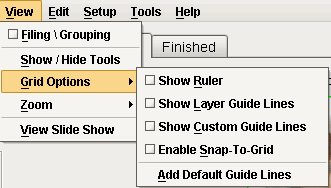
If you would like to see what the grid options can do for you, go to View > Grid Options. |
|
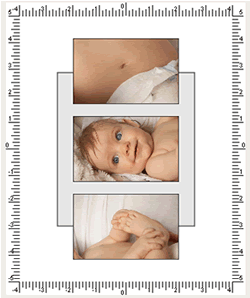
Rulers: If you click the check box that says rulers you will have rulers appear around all the edges of your composite. This will help with proper spacing and alignment while designing. |
|
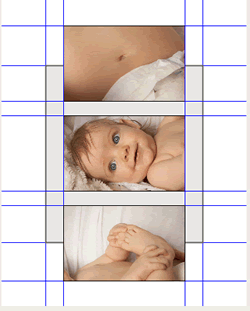
Layer Guidelines: If you check the box for layer guidelines you will see blue lines appear on your composite along all the borders of all the layers within your composite. These, as well, help with spacing and alignment while designing. |
|
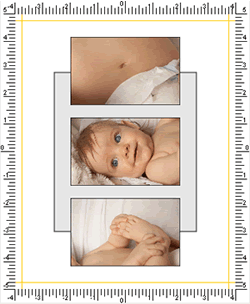
Custom Guidelines: If you check the box for custom guidelines you will have to also check the box for rulers, because they can't be used without the ruler feature. This is because this feature allows you to click and drag on one of the rulers and drag custom guidelines onto your composite (like photoshop). This way if you need to leave specific margins on your composites you can use the custom guidelines to create them. These guidelines show up orange on the page so that when you are using all these features together you can differentiate between the custom and the layer guidelines. The last feature is the snap to grid feature which makes it so that as you are moving layers around on a page they will automatically snap in place when they come close to the alignment of other layers. |