Setting up a LabPrints Server in Windows:
Sharing the LabPrints Home Folder
If you would like to share a directory that is in your user home directory:
****NOTE: You will need to reset your firewall settings to accomodate for Networking.****
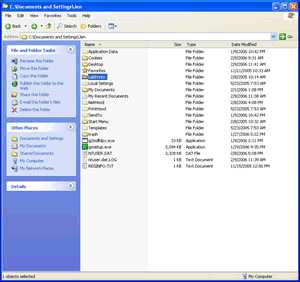 |
1.) Navigate to the LabPrints home folder, which is located in the user home directory:
c:\Documents and Settings\"User Name"\LabPrints. |
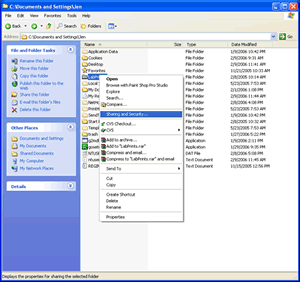 |
2.) Once you have located the folder, right-click on it and selected Properties. |
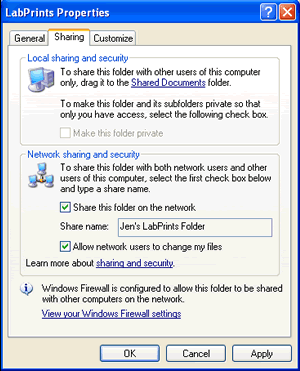 |
3.) In the Properties window, click on the Sharing tab at the top of the window. Click the check boxes next to "Share this folder on the network" and "Allow network users to change my files" and click the OK button at the bottom of the window.
If the check boxes were unselectable or "grayed out", it is most likely because one of the folders that contains the LabPrints home and its parent folders is marked as private. If this is the case, you need to locate this folder. In Windows XP, there should be a message saying this and a link to the folder below the check boxes. Once you find the private folder, you need to uncheck the box "Make this folder private", navigate back to the LabPrints home folder, and check the two checkboxes described previously.
|
Starting the LabPrints Server:
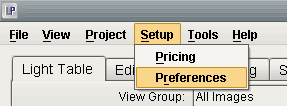 |
4.) Inside of Digital Studio LP, go to Setup -> Preferences.
|
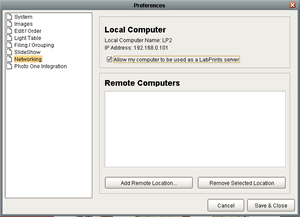 |
5.) Click on the Networking option on the left-hand side of the window. Under "Local Computer", click the check box next to "Allow my computer to be used as a LabPrints server." The server will start once you exit the System Preferences window and time you open LabPrints as well. |
Remotely Accessing a LabPrints Server:
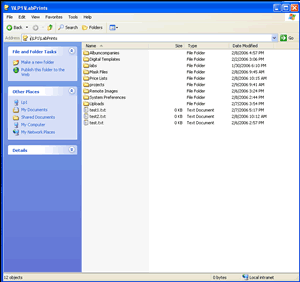 |
6.) Make sure you are logged into the remote machine. To do this, open up Windows Explorer type
"\\"server-name"\LabPrints" (without the quotes). If it asks you to login, do so with the user name and password for that machine.
NOTE: If you are not asked for a password, you should not have to repeat this process again. However, if it does ask for a password, you will need to do this every time you open Digital Studio LP if you wish to access network projects.
|
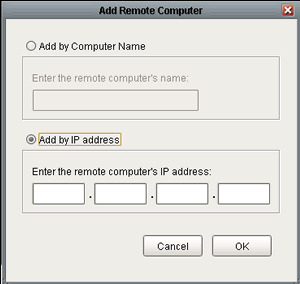 |
7.) Inside of Digital Studio LP, go to Setup -> Preferences. Click on the Networking option on the left-hand side of the window. Click on the button "Add Remote Location...". Another window will pop up asking you to either enter the name or the IP address of the computer you wish to connect to. (You can find the IP address of the other computer by opening Digital Studio LP on the other computer, going to Setup > Preferences > Clicking on Network, and it will be displayed right under where it says Local Computer.) Once you find the IP address or enter in the name, click OK.
|
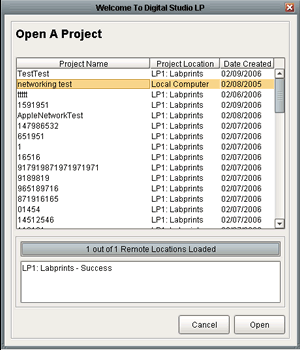 |
8.) Now when you go back to Digital Studio LP and go to open a project, the open project window will now look this the image to the left if you have set up your network properly.
|