Setting up a LabPrints Server on a Mac:
Accessing The Network
If you would like to share a directory that is in your user home directory:
****NOTE: In order to be able to access the network through the Digital Studio LP software, you must repeat steps 1-3 prior to using the software each time.****
|
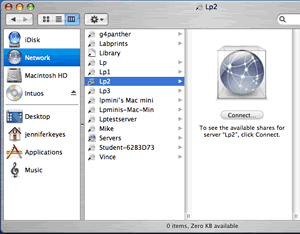
1.) First you will need to make sure you can connect to the computer you are going to network to. You can do this by double clicking on your hard drive and clicking on the network icon in the top left corner of the window. You will then get a list of networked computers you can access. Click on the name of the computer you wish to access and click on the access button. |
|
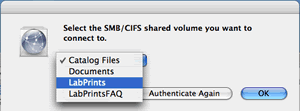
2.) A window will pop up asking you to select the folder you with to access. You should select the Name of the LabPrints folder on the other computer. Select the folder and click OK. |
|
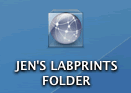
3.) You will know that you have successfully connected to this computer when you see this icon appear on your desktop with the name of the folder you are accessing. |
Sharing the Home Folder
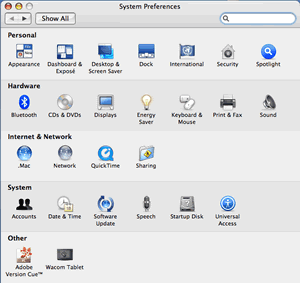 |
4.) Now open up the Sytem Preferences. From the System Preferences window, double-click on the "Sharing" folder under "Internet & Network". |
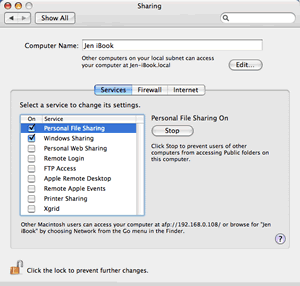 |
5.) Select the appropriate check boxes as explained below and then close System Preferences.
|
Starting the LabPrints Server:
 |
6.) Once in the software go to Setup > Preferences. |
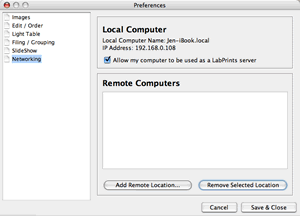 |
7.) A window will pop up with a list of topics on the left. Click on Networking. Underneath where it says Local Computer, click the check box that says "Allow my computer to be used as a LabPrints Server". |
Remotely Accessing a LabPrints Server:
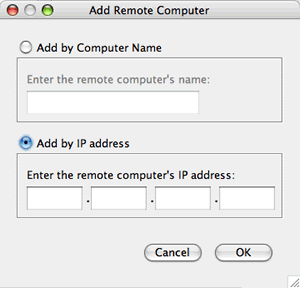 |
8.) Now Click on the button at the bottom of the window that says "Add Remote Location...". Another window will pop up asking you to either enter the name or the IP address of the computer you wish to connect to. (You can find the IP address of the other computer by opening Digital Studio LP on the other computer, going to Setup > Preferences > Clicking on Network, and it will be displayed right under where it says Local Computer.) Once you find the IP address or enter in the name, click OK. |
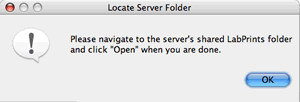 |
9.) A window looking like the one to the left telling you that once you navigate to the networked folder of the other computer to click the Open button. You can click OK and then locate the folder. |
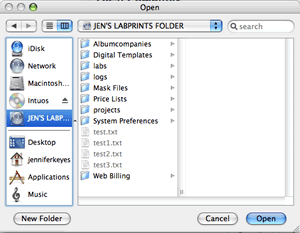 |
10.) Since we already connected to the folder before we started setting up it will show up in the finder window on the left hand side like the image to the left. Click on the icon for the folder and click the Open button. |
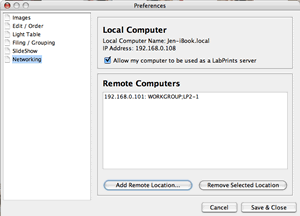 |
11.) The Finder window will close and bring you back to the page displayed to the left where it will show you the network path you just created to the other computer. This is listed below where it says Remote Computers. You can now click the "Save & Close" button. |
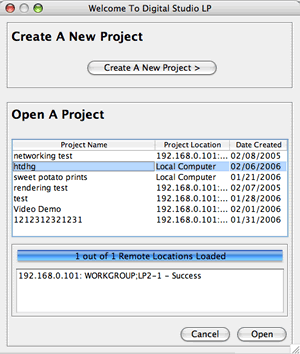 |
12.) Now when you go to open up a project in LabPrints when you are connected to the network the open projects page will look like the image to the left. |