Managing Your Projects
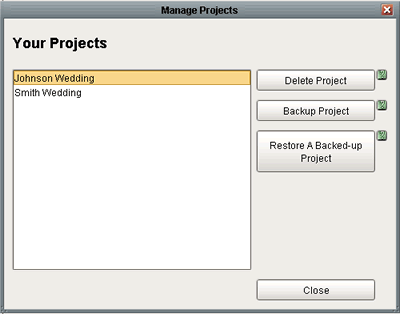
Composite Image Studio allows you to manage your projects by selecting 'File -> Manage Projects' from the main menu. From the manage projects window you can delete, backup, and restore backed-up projects.
Deleting Projects
|
To delete a project, first select the project to be deleted from your list of projects. Then press the Delete Project button. You will be prompted to verify the deletion of the project before it may continue. WARING: Deleting a project will remove all Digital Studio LP files associated with the selected project, including order information and album designs. For this reason we recommend you delete only projects that you will never use again, or projects that you have backed up, and verified that the backup restores properly. NOTE: Your high-resolution images will not be deleted when you delete a project. |
Backing-up Projects
|
To backup a project, select the project you wish to backup and press the 'Backup Project' button. You will be asked to select the folder you wish to store your backed up project in. Once you have selected a location to save the backup, a progress bar will appear to show you the status of the backup. When the backup is completed you will be able to find a file named ProjectName.backup in the folder you selected where "ProjectName" will be replaced with the name of your project. If there is already a backup file for this project in the folder it will automatically rename the backup of the project to ProjectName_x.backup where x is one greater (+1) than any existing backups you may already have for this project. NOTE: Backing up your project will backup all of your orders and album designs, but will not backup your high resolution images. Only the low-resolution images used within Digital Studio LP along with the project files associated with the project will be backed up as part of the project. |
Restoring a Backed-up Project
|
To restore a backed-up project, first press the 'Restore A Backed-up Project' button. This will allow you to navigate to the ProjectName.backup file that was created when you backed-up the project. Once you select the backup file you wish to restore, it will attempt to restore the project with same name that the original project was created with. If there is already a project with this name, it will ask you what you would like to name the newly restored up project. Once restored, the project will appear in your list of projects, and can be opened by selecting File -> Open Project from the Main Menu. |
Managing Projects FAQ
Q: What will happen when I backup my project?
A: When you backup your project, all of its associated files will be placed in a compressed file that you can store on your hard drive or other media (e.g. CD or DVD).
Q: Will my orders and album designs be backed-up when I backup my project?
A: Yes. All orders and album designs will be backed-up as well.
Q: Will my high resolution files be backed-up when I backup my project?
A: No. Your high resolution files will not be included in the backup. Only the internal files of the program.
Q: How do I restore a backed-up project?
A: You can restore a backed-up that you created with Digital Studio by first pressing the "Restore A Backed-up Project" button. This will pop-up a window allowing you to browse to the backup file you wish to restore. Once you have selected the backup file to be restored, you press the Open, or Restore button.
Q: What will happen when I restore a project?
A: Restoring a project will restore the project into your list of current projects. The album designs, orders, and other project information will be restored to their current state from the time of the backup.
Q: Will my high resolution files be affected when I restore a project?
A: Your high resolution files will not be deleted or modified in any way when restoring a project.