Working with Groups
Selecting a Group
|
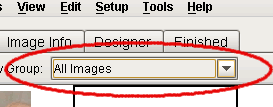
The drop-down menu seen to the left controls which group is currently being displayed on the Light Table. By default, the program creates three groups: All Images, Ungrouped, and Trash. These groups will be listed in the drop-down menu, along with any groups that you created yourself (see the 'Filing & Grouping' tutorial to learn how to create your own groups). |
Adding/Removing Images from Groups
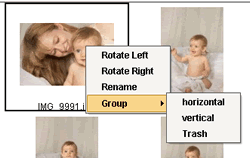 |
An image can reside in one or more groups in the program, and will always be listed in the "All Images" group. For instance, you may choose to add an image to a group you created called "Reception", and later choose to also add the image to the "Portraits" group. In this case, the image would be displayed in three places: All Images, Reception, and Portraits. To add an image to a group, simply right-click the image(s) you wish to add (Apple-click on a Mac), select the "Group" menu, and click on the desired destination group. Similarly, you may remove an image from a group by clicking "Remove from" the current group option. And finally, if you would like to remove the image from all its groups, and place it in the Trash group, select the "Trash" option. |
Additional Notes: