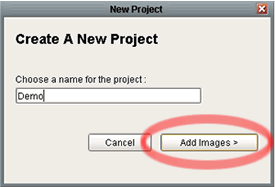
To show the Add Images screen you can press the 'Add Images' buttonfrom the Create New Project screen:
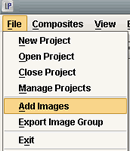
Or you can select Project -> Add Images from the Main Menu:
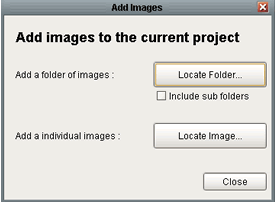
Adding A Folder of Images
To add an entire folder of images to your project press the 'Locate Folder...' button. This button will show a window that will allow you to browse your computer to locate a folder of images to add to your project. When you have located a folder you can either click on the folder itself and press the Select button, or go into the folder and select one of its images and press the Select button; both methods will start adding the folder of images. Digital Studio LP will automatically go through the selected folder and add the images of the Supported Types to your project. If you wish to add all the sub folders of a folder, simply select the check box below the Locate Folder... button before you press it. Choosing this option will automatically go through all the images from the selected folder and its sub folders, and add them to your project.Adding Individual Images
To add individual images to your project press the 'Locate Image...' button. This button will show a window allowing you to find the image(s) you wish to add to your project. You can select a range of images from the window by pressing and holding down the Shift key, or press and hold the Ctrl key to select individual images. When you have selected the images you wish to add to your project, press the Open button. This will add the selected images to your project, if they are of the supported file types.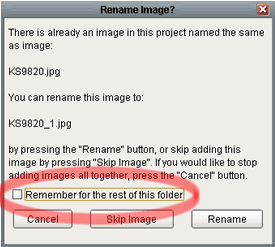
Adding Images TIPS:
If you are adding images to a project that have the same name, you will be prompted with the following message:If you wish to rename all of the images automatically, simply select the check box for “Remember for the rest of this folder”. You can also use this feature if you wish to skip all images where there is already in the project with the same name.