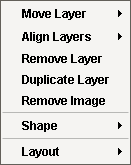
- The Move Layer option from the Alternate menu allows you to adjust the placement of a layer within the composite. If you want a layer to overlap another layer, you will move the layer up so it displays the image on top of the other one. If you create an image layer and want to make it the background image, you will select move image to bottom, and the image will move all the way to the background.
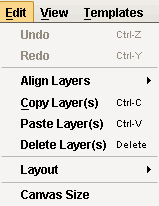
- If more than one layer is select you have the option of aligning the layers to the top, bottom, left, or right of the composite.
- The Remove Layer option will completely remove the selected layer from the composite.
- The Duplicate Layer option will copy the selected layer and allow you to move the new layer to a new position on the composite.
- The Remove Image option will allow you to remove the image from the current layer, but will keep the image layer box visible so you can add a new image.
- The Shape Option allows you to change the shape of the current layer to an oval or a rectangle.
- The Layout Option allows you to rotate the entire composite either 90, 180, or 270 degrees or you can choose to flip the composite horizontally or vertically.