Using Masks
|
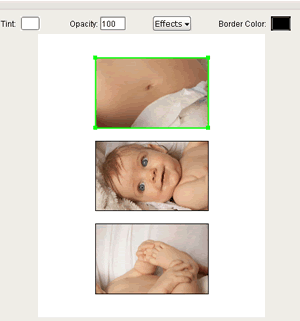
In order to use a mask on an image, you must first click on the image layer to highlight it. You will know it has been selected when the green box appears around it. |
|
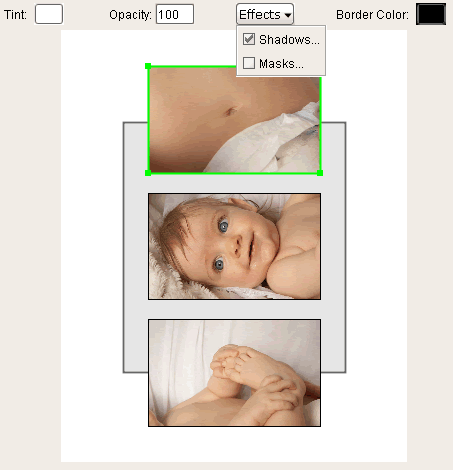
Click on the Effects menu at the top of the screen and a little drop down window will appear allowing you to choose between Drop Shadows and Masks. Check the box next to Masks. |
|
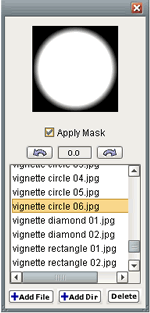
A new window will appear allowing you to choose between a list of all the masks within the software. When you are ready to apply the mask to the image layer click the check box at the top of the window that says "Apply Mask" and the image will now appear with the mask. To get rid of the drop shadow window click the red "x" box in the top right corner. |
|
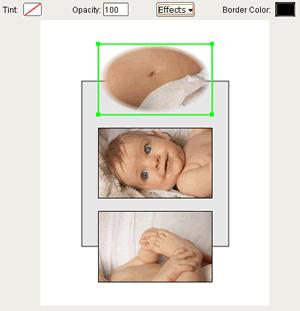
Here's how your new image will look with the mask.. |