Template/Flush Album Designer

Show/Hide Tools

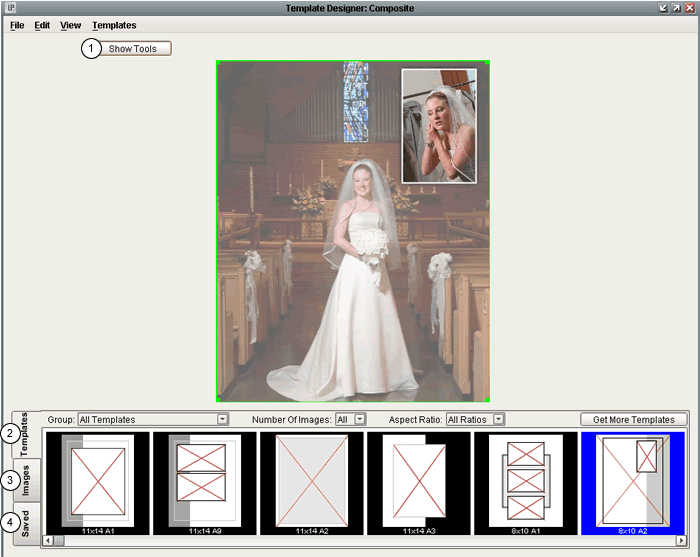
  1. The Show/Hide Tools option, also found under the View menu, will open the Template Designer's tools if they are currently not visible on the screen, or will hide the Template Designer's tools if they are currently open in the Template Designer window.
  2. The templates tab displays all the templates available within the template design tool.
  3. The images tab displays all the images in your current project. You can view the images in their specific groups as well.
  4. The saved tab displays all the templates you have previously created and already saved.

Templates Tab

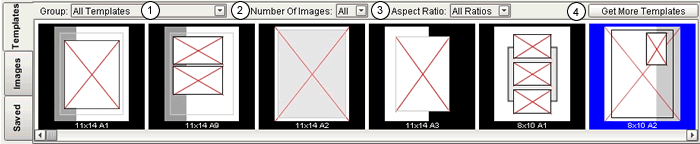
  1. The Group Drop Down menu allows you to choose which group of templates you want displayed. If the All Templates group is selected then all the templates within your software will show up.
  2. The Number of Images drop down allows you to sort the templates based on the number of image layers on the templates. This way if you want to create a composite with just 3 images on it, you would select 3 from this drop down and all the templates with three images will be displayed.
  3. If you would only like templates with a specific aspect ratio to be displayed you can select the aspect ration from this drop down. So if you are creating composites that are squares, you would select the square option from this drop down, and only the square templates will show up.
  4. The Get More Templates button is how you will download templates new updated templates when they are available. When clicked it will take you to a webpage where you can click and download new updated templates.

Images Tab

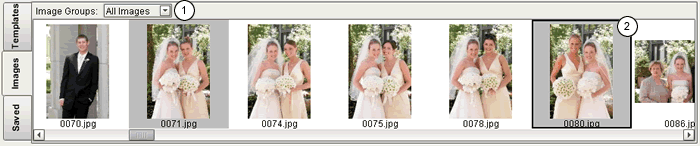
  1. The Group drop down on the images tab allows you to select which images you want displayed (based on different groups you have already set up within filing/grouping).
  2. Once you have used an image within a composite the background will become a shaded gray. This way you can easily tell which images you have already used within a given album.

Saved Tab

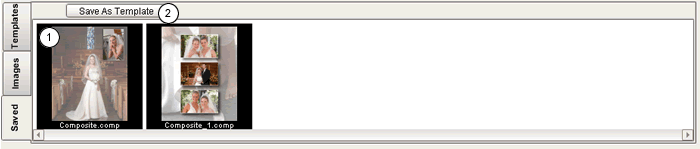
  1. The composites you have already created and previously saved will show up here.
  2. If, when you created a composite, you customized the template you used (or created one from scratch) you can choose to save the composite as a template, so you can use the same customized template for future albums. Once you save it as a template, the new template will show up under the templates tab. You can find it by clicking on the Templates Tab,selecting All Templates from the Group drop down, and scrolling all the way to the right. It will be the last template in the list.