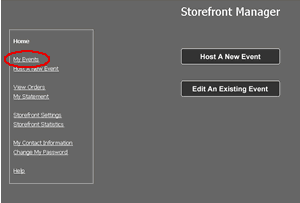
To edit your event information click on “My Events” from the storefront navigation menu.
Edit an Existing Event
Edit Event Information
|
To edit your event information click on “My Events” from the storefront navigation menu. |
|
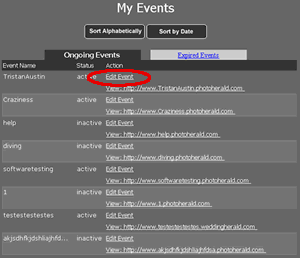
Then click the “Edit Event” link next to the project you wish to change. |
|
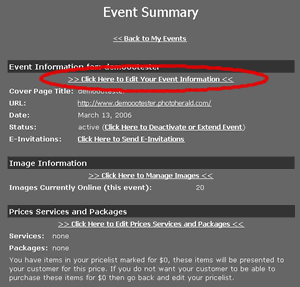
On the Event Information screen click on "click here to edit event information". |
|
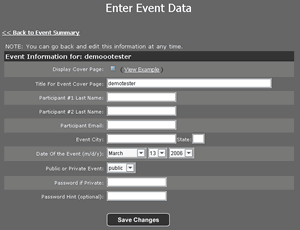
From here you can edit any of the information that appears on the homepage. |
Activate, Deactivate or Extend an Event
|
To edit your event information click on “My Events” from the storefront navigation menu. |
|
Then click the “Edit Event” link next to the project you wish to change. |
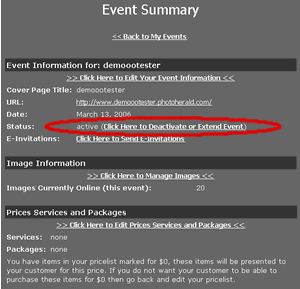 |
Click on the link that says (Click Here to Deactivate or Extend your Event). |
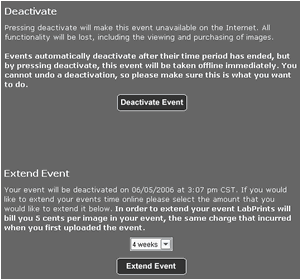 |
You will then be brought to a page that allows you to either activate/deactivate the event or you can choose to extend the event by selecting a certain number of weeks from a drop down menu. When you are finished click the save changes button at the bottom of the screen. |
Sending E-Invitations
|
To edit your event information click on “My Events” from the storefront navigation menu. |
|
Then click the “Edit Event” link next to the project you wish to change. |
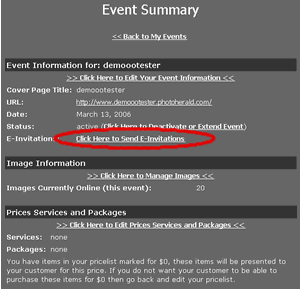 |
Click on the link that says Click Here to Send E-Invitations. |
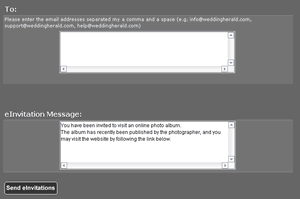 |
From here you can enter in the e-mail addresses of everyone you wish to send the invitation to and you can specify what the message will say. When you are finished click the save changes button at the bottom of the screen. |
Manage Images
|
To edit your event information click on “My Events” from the storefront navigation menu. |
|
Then click the “Edit Event” link next to the project you wish to change. |
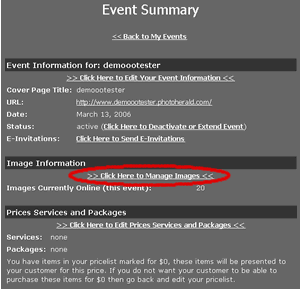 |
Click on the link that says >>Click Here to Manage Images<<. << |
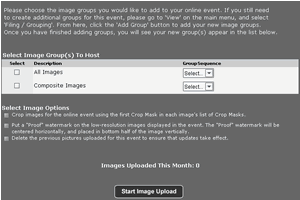 |
From here you can select which image groups you would like to re-upload. There will also be 3 check boxes at the bottom that allow you to select the first crop mask for the images online, you can select to have a watermark placed on your images, and the last checkbox makes sure that the images that are already posted will be erased when you when you re-upload images. |
Editing Prices and Services
|
To edit your event information click on “My Events” from the storefront navigation menu. |
|
Then click the “Edit Event” link next to the project you wish to change. |
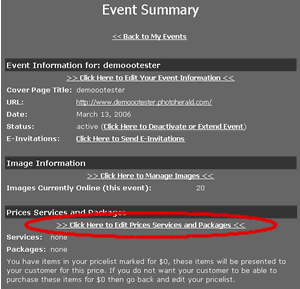 |
Click on the link that says >>Click Here Edit Price Services and Packages<< |
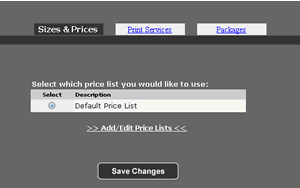 |
From here you can add/edit the price list you want for your event, as well as any print services and packages you would like to offer your customers. |