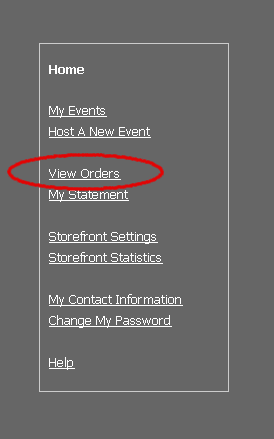
Click on “View Orders” from the storefront navigation menu.
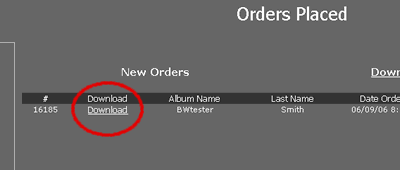
Click on the link that says download.
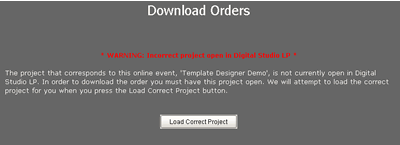
If you don't get the above message, continue to the next step. If for some reason you get this message, it means that the order you are trying to download is for a different project than the one you have currently open. Click on the Load Correct Project button. This will open the correct project on the light table. Click on the storefront tab and continue below.
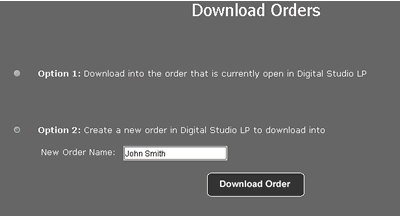
This next page gives you the option of downloading this order into the order that is currently open on the invoicing screen (option #1) or you can create a new order on the invoicing screen and give it a specific name (option #2). For this demo I will select option #2.
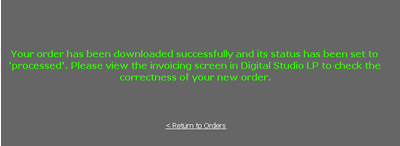
Once the order has been successfully downloaded to the invoicing screen this message will appear. Now Click on the invocing tab.
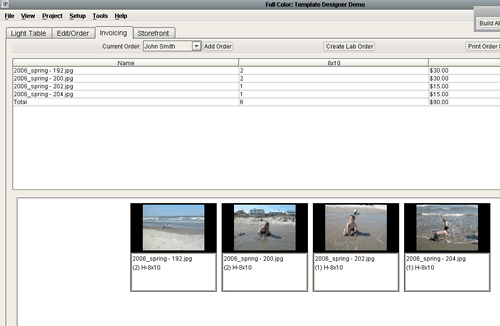
The order you just downloaded will now be the order showing on the invoicing screen. If all the retouchings have been done previously to your photos, and you are ready to send to order to your lab, you can now create a lab order.