 'System' Settings
Setting up your System Preferences
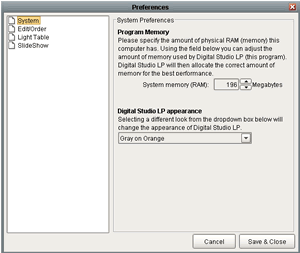
To initialize the settings in Digital Studio LP, click on 'Setup->Preferences' on the main menu. You will be presented with the following screen:
'System' Settings
Program Memory
For Windows users, the Program Memory setting dictates the maximum amount of RAM (Random Access Memory) that can be allocated to the program. For the best performace, set this value equal to the amount of memory you currently have on your computer
Digital Studio LP appearance
This option allows you to to change the appearance of Digital Studio LP. You are capable of choosing one of four different color schemes.
'Edit/Order' Settings
On the Preferences screen, click on 'Edit/Order' in the left navigation to view the following settings:
Image Size
When you add images to a project in Digital Studio LP, the program creates low resolution copies of your high resolution files. The Image Size setting sets the maximum length of the low resolution copies' longest sides. Note that the larger this value is set, the longer it will take to add images to a project.
Image Display Quality
This setting directly influences the quality of the low resolution images displayed in the program. When adding images to a project, you have two choices in how to add them. You may add them using Normal Quality, where the image quality is lower, but images are added to the project quickly. The other option is to add images using Super High Quality where the image quality is very high, but is slower when adding images to the project.
Image list to step through in Edit/Order
On the Edit/Order screen, you are given the ability to step through images using the left and right arrow buttons. When stepping through your images you have two options, firstly, you may choose to step through all of the images in the project, starting with the first image, and ending with the last. On the other hand, you may choose to step only through the images that are contained in the current group or classification. Stepping through images using this choice will display the first image in the group through the last image in the group. The currently selected group is also the group selected on the light table.
'Light Table' Settings
On the Preferences screen, click on 'Light Table' in the left navigation to view the following settings:
Image Name Display
When viewing the Light Table, you have two options for displaying image names. First, you can choose to print image names directly on the Light Table, in which case they will be listed underneath each image. Second, you can have the image names displayed on the tool tip, which is also known as the hover over (hover over an image with your mouse, and the image name will be displayed in a couple seconds).
'SlideShow' Settings
On the Preferences screen, click on 'SlideShow' in the left navigation to view the following settings:
Image Duration
For this setting, you can set the number of seconds you would like the slideshow to wait before switching to the next image.
Image Size
For the Image Size setting, you can display images at their 100% size, or fit images to the screen. The first option will display the image at the size in which it was added to the project (set by 'Image Size' under the Edit/Order preferences). We recommend that you set the Edit/Order image size to best accomodate your monitor, and then use this option for slideshows. That way, if images are added to your project at the correct size, you won't be forced to fit the images to the screen during slideshows, which can often stretch and distort image quality.
Image Fade
When viewing a Light Table slideshow, you have the option of setting the fade between images. You can choose to disable fading, or set it to fade into the next image.