Tools on the Light Table Screen
The Light Table allows you to group, compare, sequence, and print images in a thumbnail environment.
This makes managing your images much easier, especially when you're working with a very large number of them.
** To view the an image on the Edit/Order screen, simply double click its thumbnail **
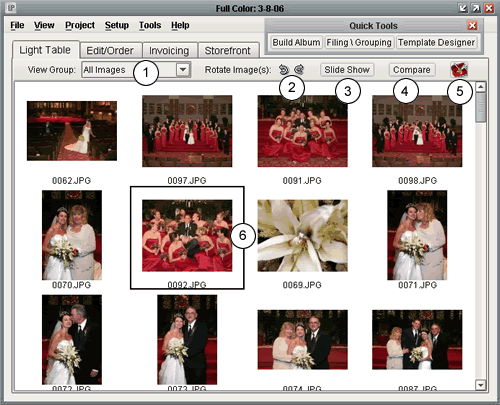 |
- View Group: Select which group you would like to view. By default, every project contains the "All",
"Ungrouped", and "Trash" groups. Any groups that you create yourself will also be listed here for viewing.
- Rotate Image(s): Rotates one or more selected images 90 degrees clockwise or counterclockwise.
- Slide Show: View a slide show of the images in the currently selected group.
- Compare Images: Compares one or more images (up to 6) in a full screen view.
- Toolbox: This new feature gives you the ability to sort your images, rename your images, relink
to your high res images, and print your light table.
- Currently Selected Image: A box is drawn around the currently selected image(s).
**Note: to select a range of images, select the first in the range, then hold down shift
and click on the last image in the range. To select multiple images one at a time, hold down
the Ctrl key while selecting images.
|