
To register your software for the first time go to "Register This Program" at the top of your screen and click on "Register Digital Studio LP (turn off demo mode)".
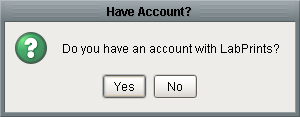
A pop up window will appear asking you if you have an account with LabPrints and you will click on "No".
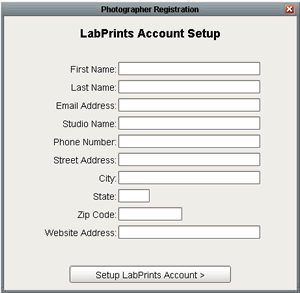
Another pop up window will appear asking for your personal/contact information. When you finish filling this in, click on "Setup LabPrints Account" at the bottom of the page. Make sure you use a valid e-mail address because in order to finish the registration process you have to retrieve a password that gets e-mailed to you.
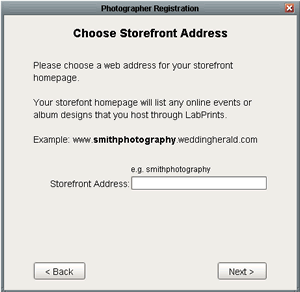
It will then prompt you to create a name for the url where your events will be hosted. If you choose a name that has already been taken it will ask you to pick a new one.
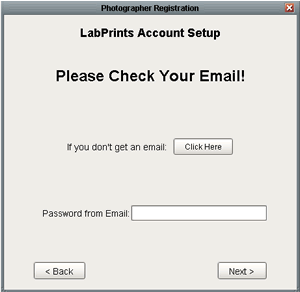
From here check your e-mail and type the password from your e-mail into the textbox at the bottom of the next window. If for some reason you don’t receive an e-mail click the button labeled "If you don’t get an e-mail: Click here".
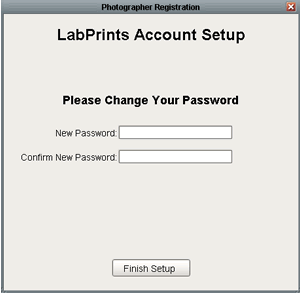
Once you enter your password from the e-mail you will be asked to change your password. After doing this click the Finish Setup button at the bottom of the window.
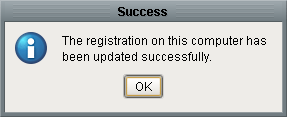
A successful registration window will appear and you can then click the ok button on that window, bringing you back into the software.