Grouping Images within Filing/Grouping
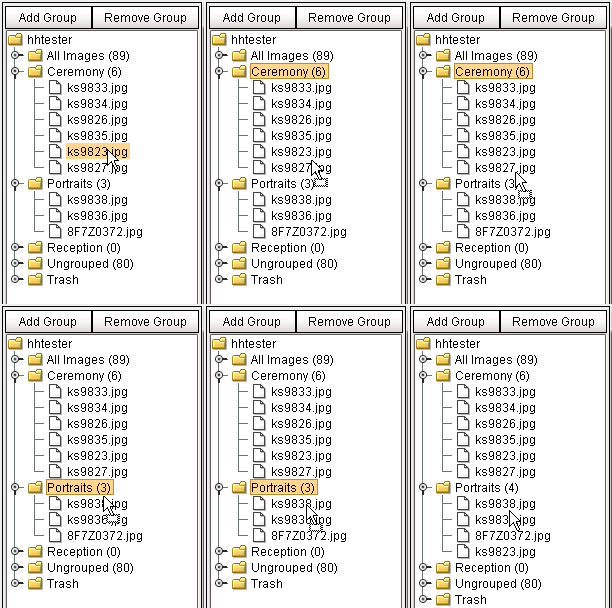
You may copy images between groups by dragging a single image to another group (see left). This method of grouping will copy (not move) the image to the new group. This means that the will remain in the original group, and will also be listed in the new group. Note: when you drag images out of the 'Ungrouped' group, the image will be removed from 'Ungrouped'. The purpose of this group is to list all images that have not been added to a group yet.
Finally, the Filing/Grouping tool allows you to work with the Trash group. You may drag single images to the trash similarly to the way you copy images to other groups. When you add an image to the trash, it will remove the image from all groups, as well as remove any of its orders. Should you decide to take an image out of the trash, simply navigate to the 'Trash' section of Filing/Grouping, right-click on the image, and select 'Restore Image'.
Grouping Images using Filing/Grouping and the Light Table
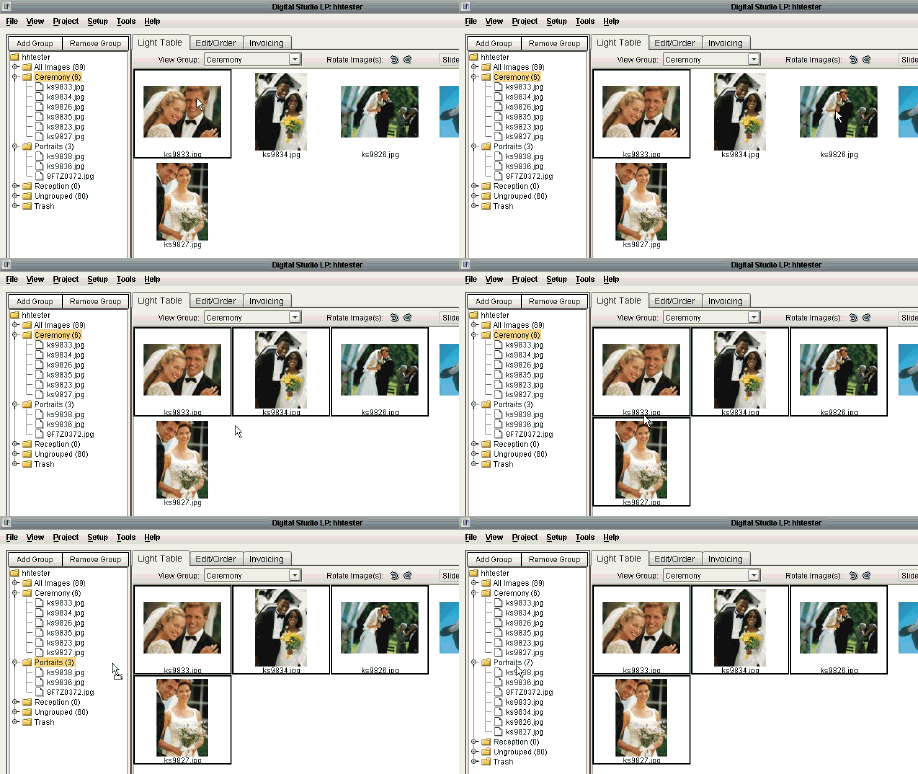
When using Filing/Grouping only, you can only group one image at a time. But, when used in conjunction with the Light Table, you may group as many images at once as you like.
As you can see in the animation, you may select multiple images from a group, and drag them to the group of your choice. This method accomplishes the same thing as doing it individually in Filing/Grouping, but can save time. You can also use this method to send numerous images to the trash by simply dragging them to the 'Trash' on Filing/Grouping. And lastly, you may take multiple images out of the trash by first viewing the Trash group on the Light Table, and then dragging the images to the desired group.