 |
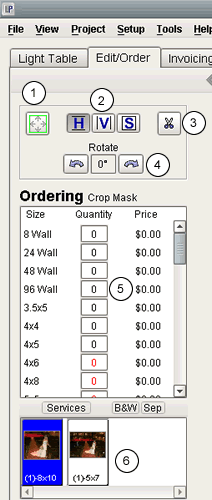
- Allows you to set the green crop box
to the entire height and width of the
current image.
- Choose between a vertical, horizontal
or square crop mask for the image.
- Only display the portion of the image
within the crop mask to get a better
idea of what the crop will look like.
- Rotate the crop mask left or right.
- The print sizes offered by your lab
will be listed on the left, each with
a text box to the right that contains
order quantities for that size. When
you click in a text box for a specific
print size, the green mask on the image
will adjust slightly. This is due to
the fact that most print sizes have different
aspect ratios.
- View thumbnails for every crop that
has been ordered for a given image.
|