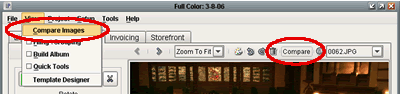
Launching the Compare Images Window
To view the Compare Images screen:
- Select 'View -> Compare Images' from the main menu.
- Another method to open the Compare Images screen is to click the 'Compare' button located along the top of both the Edit/Order and the Light Table screens.
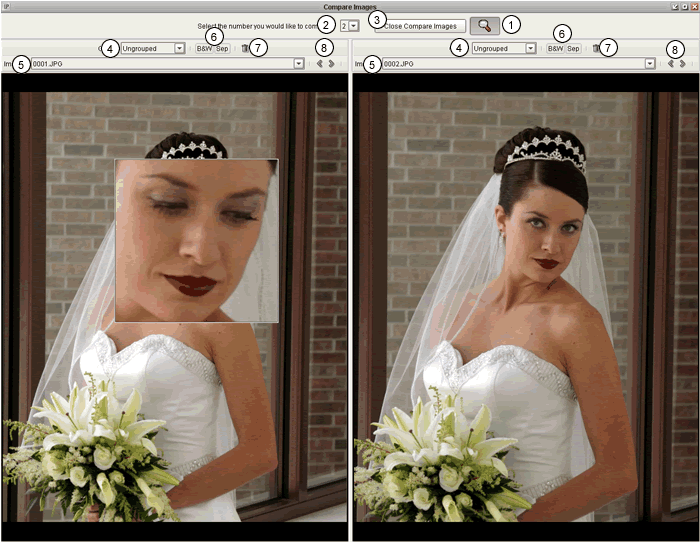
Working on the Compare Images Screen
- Select the magnafying glass tool to zoom in on portions of the images.
- Select the number of images to compare. You may compare one to six images simultaneously.
- Close the compare images screen.
- Select the group where the image to be compared resides.
- Select the image name to be compared.
- B&W and Sep buttons allow for an image to be previewed in either black and white, or sepia.
- The Trash Can button quickly moves any image to the Trash group.
- The Arrow buttons navigate sequentially through the images in the group you have selected.