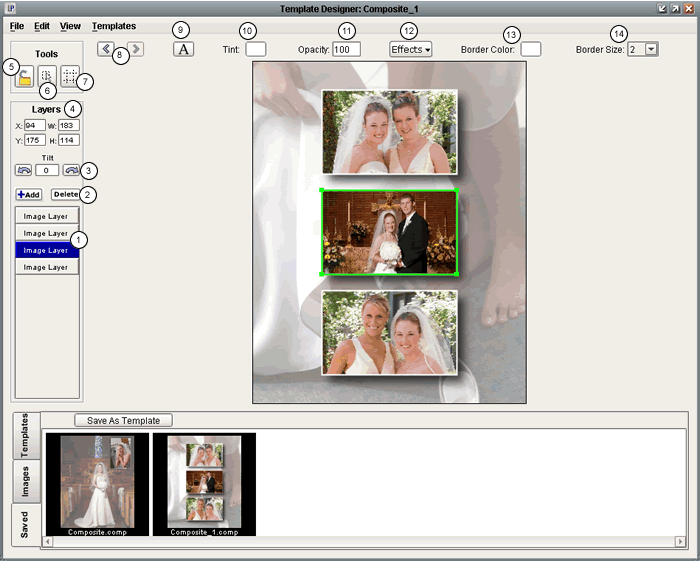
- The Image Layer List represents all of the layers found within a composite and is adjusted as image layers are added, removed or moved up or down through the composite. Each layer can be selected in the list to highlight it inside the composite. The top layer in the composite will be seen at the bottom of the Image Layer List.
- As the Add button is pressed, your cursor becomes a
 . When pressed, the Delete button removes any of the highlighted image layers from the composite. . When pressed, the Delete button removes any of the highlighted image layers from the composite.
- The Tilt Arrows rotate any of the image layers that are selected up to 90 degrees to the right or left. Tilting occurs one degree at a time, but clicking and holding one of the Tilt Arrows will rapidly increase the rotation speed. Once an image layer comes in contact with a composites edge, it cannot be tilted any further in that direction.
- Each layer in the composite has specific height and width dimensions, along with specific location coordinates. This information is displayed in pixels. You can either manually adjust an image layer's information, by clicking on one of the dialog boxes and typing in the correct information, or you can simply adjust the layer inside the composite until the correct information is achieved.
- X: is an image layer's horizontal location
- Y: is and image layer's vertical location
- W: is an image layer's width
- H: is an image Layer's height
- The Move and Swap Images tool, which appears on screen as a pad lock, will when appearing locked restrict you from moving image around the composite, but will allow you to swap images between image layers. This is accomplished by simply selecting an image from an image area and dragging it over the area you want to move it to. When the lock appears unlocked, you have the ability to move the image areas around the composite or adjust their size as you see fit.
- The Nudge Layers tool when selected simply slows down your cursor's movement as it moves around the screen. This feature helps focus the fine tuning of a composite's layer information.
- The Snap Layers to Grid functionality allows you to view a composite with a ruler on all sides of it, which is defined in inches, and used to check or correct any alignment errors. Choosing to view a composite with this tool also includes the ability to snap layers to one another, which simplifies and ensures proper alignment between image layers.
- The Text button when pressed turns your cursor's arrow into a text prompt as you drag it over the composite. When you decide where you would like to add the text, simply click on the composite at that location. The Edit Text window will open up, where you can define the font, size, color, and style of the text you would like to create.
- The Image Navigation Arrows help when scrolling through any previously created composite images. The arrows will always appear on the screen, even when all other tools are hidden.
- When an image layer is highlighted, the Tint button displays the layer's current tint color, and when selected will open the Choose Layer Color window. The Choose Layer Color window allows you to choose a layer color using Swatches, HSB, or RGB values. After a color is selected, press the OK button which will close the window, bring you back to the main Template Designer window and incorporate the information into the composite.
- A layer's opacity can be adjusted using the scroll bar which appears when the Opacity Dialog Box is selected.
- When the Effects button is pressed, the drop shadow window opens up displaying the drop shadow's current settings. Available adjustments include the drop shadow's Blur Radius, Opacity, and X and Y offsets. The add the drop shadow to the currently selected layer check the drop shadow check box at the top of the drop shadow window.
- When an image layer is highlighted, the Border Color button displays the layer's current border color, and when selected will open the Choose Border Color window. The Choose Border Color window allows you to choose a border color using Swatches, HSB, or RGB values. After a color is selected, press the OK button which will close the window, bring you back to the main Template Designer window and incorporate the information into the composite.
- When an image layer is highlighted, the Border Size drop down will show the layer's current border size. A layer's border size can be adjusted from zero to fifteen, with zero completely removing the border from the layer.
|