Template Designer Menus

Alternate Menu

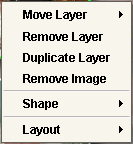
You can get to the Alternate Menu by right-clicking (for windows) or ctrl+click (for mac).
  • The Move Layer option from the Alternate menu allows you to adjust the placement of a layer within the composite. If you want a layer to overlap another layer, you will move the layer up so it displays the image on top of the other one. If you create an image layer and want to make it the background image, you will select move image to bottom, and the image will move all the way to the background.
  • The Remove Layer option will completely remove the selected layer from the composite.
  • The Duplicate Layer option will copy the selected layer and allow you to move the new layer to a new position on the composite.
  • The Remove Image option will allow you to remove the image from the current layer, but will keep the image layer box visible so you can add a new image.
  • The Shape Option allows you to change the shape of the current layer to an oval or a rectangle.
  • The Layout Option allows you to rotate the entire composite either 90, 180, or 270 degrees or you can choose to flip the composite horizontally or vertically.
Edit Menu

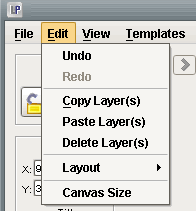
  • The Undo functionality allows you to undo up to the last 10 steps of a composites creation.
  • The Redo functionality allows you to redo up to the last 10 steps of a composites creation that may have been undone using the Undo function.
  • The Copy functionality allows you to copy individual or multiple layers of a composite.
  • The Paste functionality allows you to paste the individual or multiple layers that you have just copied.
  • The Delete functionality allows you to delete individual or multiple layers within a composite.
  • The Layout Option allows you to rotate the entire composite either 90, 180, or 270 degrees or you can choose to flip the composite horizontally or vertically.
  • The canvas resizing functionality provides you with the ability to resize the over all size of a composite. This is a handy feature when you lab doesn't offer the print size you created your composite as and you need to resize it for printing. Its also nice when you want to create pano's from a previously created composite.

Templates Menu

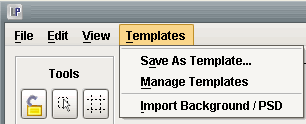
  • The Save Template As function enables you to save a template you custom created so that it will show up on the templates tab everytime you use the software.
  • The Manage Templates function allows you to import new templates into the software, or it allows you to create new, edit existing,or delete templates groups that show up on the templates tab.
  • The Import Background/PSD allows you to to import a PSD, JPEG, or Tiff file to be used as a template/composite background.

View Menu

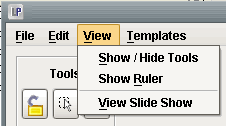
  • The Show/Hide Tools option allows you to either view the templates tools if they are closed, or hide the templates tools if they are visible.
  • The Show Ruler option, when selected, displays a ruler around the perimeter of your composite to help with the alignment of layers.
  • When View Slideshow is selected, the Slideshow tool is launched presenting the first saved composite found under the Saved Tab. The slideshow will continue to cycle through all of the saved composites until it is stopped or completes the list of composites. To change the order of the Saved Tab please see Re-Organizing Composite Images