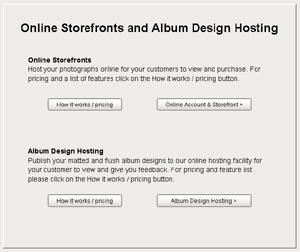
Click on the Storefront Tab and then click on “Online Account and Storefront>”.
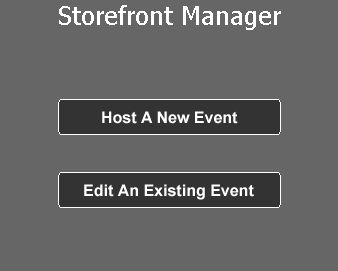
Click on Host A New Event

You will then be brought to a page that says First Time Hosting Setup. Click the button that says Hosting Setup.
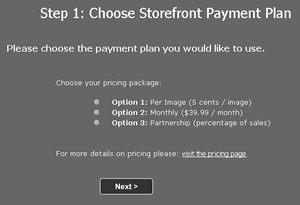
The next page displays the 3 pricing plans we offer. Select the one that best suits your needs and click the Next button.
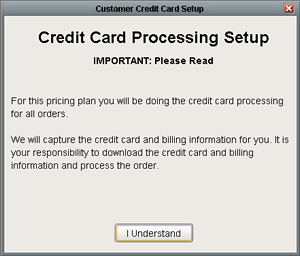
A window will pop up about the credit card processing setup. Click the I Understand button.
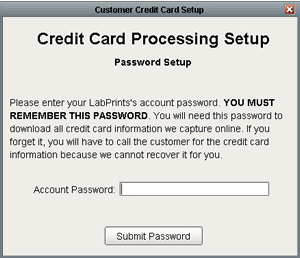
Another window will appear asking you to type in the password you set up for Digital Studio LP when you registered the software. After doing so, click the Submit Password button.
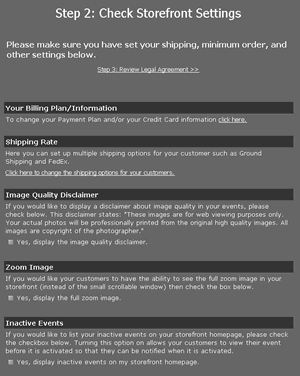
The next page you will see is the Storefront Settings page. There are several different options on this page that are all explained in detail in the Storefront Options section.
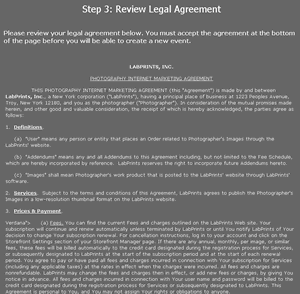
Next you will see the Legal Agreement. Scroll to the bottom of the page and click on "I Agree". The next page has one button you want to click on saying "Host a New Event". steps.
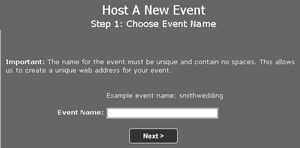
Create a name for your event. If the name has already been used by someone else it will ask you to come up with a new name.
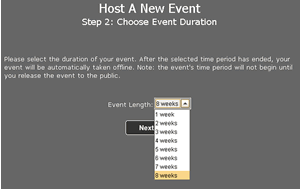
You will then have the option of selecting how many weeks you want your event posted online for.
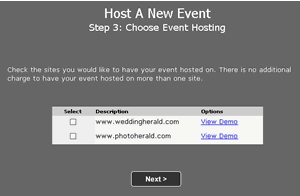
You can then choose whether you want your event posted on weddingherald.com or photoherald.com, depending on whether the photos you are uploading are wedding photos or not.
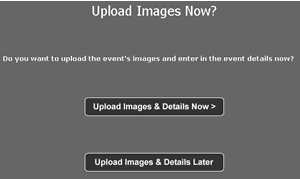
On the next page you have two options; you can “upload images & details later” to end the process and finish editing your photos before you post the album. You can also choose “Upload Images & Details Now >” which will step you through the rest of the process. If you choose to upload now follow the rest of the steps below.
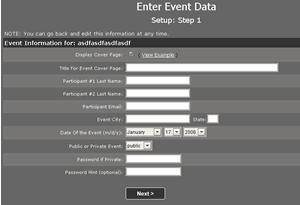
On this next page you will be prompted to enter the information for the event. You can choose to fill in all, some, or none of the information because its not required.
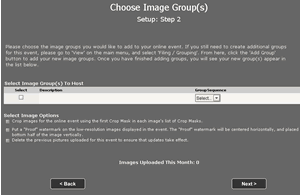
If you have created different image groups in this project you will now be asked to select which ones you would like posted. There are also 3 checkboxes at the bottom: one to select the crop used for the images when they are posted, one for putting a watermark on your images, and one to make sure when you re-upload images the images currently posted get deleted if you so desire. When you click the next button a window will appear telling you that your images are currently being uploaded and to click on the next button at any time.
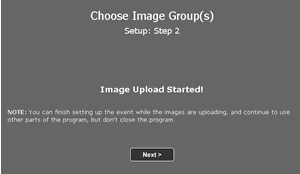
The next screen appears just to inform you that your images have started uploading. Clikc next whenever you want, as you do not have to wait for the images to completely upload before moving on with the steps.
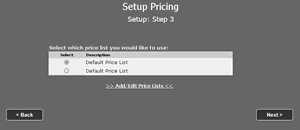
The next step is to set up the price list you would like to have displayed for this event. You can choose one of the listed price lists or you can click on “Add/Edit Price Lists” to add a new one.
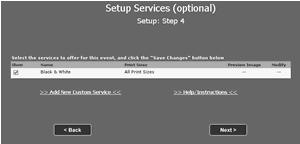
The next step is to set up the services you want available to your customers. Black & White is the default service that is automatically available, but if you want to add other services you can click on “Add New Custom Service”.
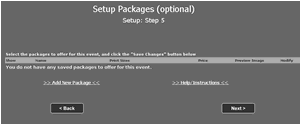
The next step is to setup packages that you might want to offer to your customers. There are no default packages for this step, so if you want to offer specific packages click on “Add New Package”.
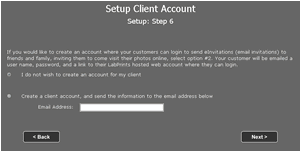
After these steps are completed you will need to release the event. You can either set up an account for the client the event is for or you can select that you don’t wish to create an account.
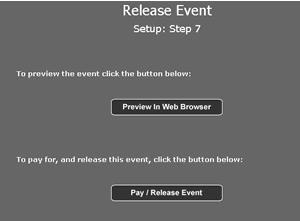
The next window gives you the option of previewing the event in your internet browser or “releasing” the event, which means activating the event so that it is now posted online.
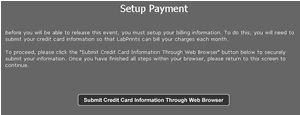
The next window informs you that you haven't yet paid for the storefront hosting service. Click on the "Submit Credit Card Information Through an Web Browser".
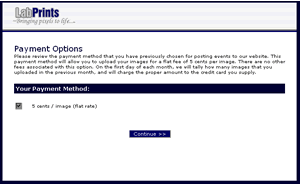
Your Internet browser will open up showing you which payment plan you are paying for. Click the "Continue" button.
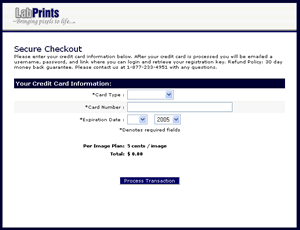
Fill in your credit card information, click process transaction. A success screen will appear telling you to close your internet browser.
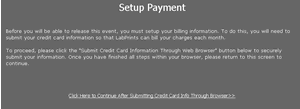
Return to the software and click the link that says "Click Here to Continue After Submitting Credit Card Info Through Browser", which will release your event.