Selecting, Moving and Rotating Light Table Images
Selecting images
You can select an image on the light table simply by clicking on
the image itself. When an image has been selected a black border will
be drawn around the image. You can select an entire section of images
by holding down the Shift key, clicking the first image you wish to
select, then, while still holding down the Shift key, clicking on the
last image you wish to select. The first, last, and all images in
between will be selected.
Selecting multiple images that are not in a row is possible by
holding down the Ctrl key as you click on the images you wish to
select.
Moving images on the light table
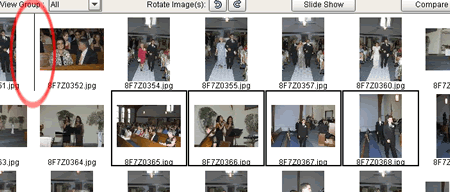 |
You can move images on the light table by selecting the images you
wish to move, and dragging them to a different location. As you drag
the images, a line will appear near the mouse cursor which will
indicate where the selected images will be relocated to:
This functionality gives you the ability to put your images in the correct
sequence for presenting your work, or designing albums. |
Rotating images
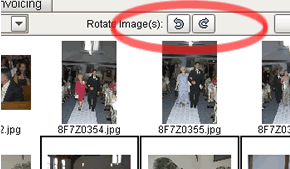 |
You can rotate selected images using the arrow buttons to rotate
the images clockwise or counterclockwise:
PLEASE NOTE: This will also rotate the images as they appear in the
Edit / Order screen. |
Additional Notes:
- Double clicking on an image will open the image in the Edit /
Order screen.
- You can right click (or hold down the Apple key on a Mac) on a selected group of
images to rotate them clockwise or counterclockwise.