Opening Images in an External Editor
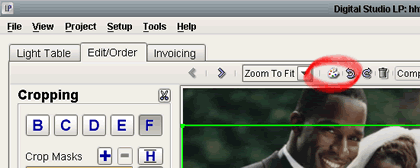
To edit an image with the image editor of your choice, you must first set the program that will be used. To do this, click the color palette:
|
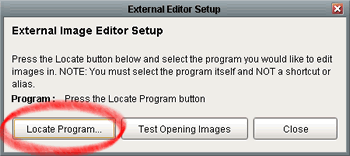
You will then be presented with the following screen. Click the 'Locate Program' button to find the image editor program you would like to use. You must find the program itself, and not a shortcut to the program (in Windows, it will most likely be under 'Program Files', for the Mac it should be in 'Applications'). When you have selected the desired program, click the 'Close' button. |
|
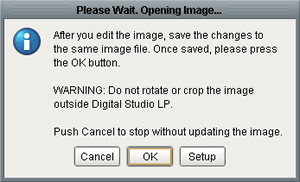
From now on, whenever you click on the color palette, the current image will be opened with the chosen program. Also, the program will display the following window: |
|
Once you are finished editing the image, save your changes in the external editor, and go back to Digital Studio LP. If you made any changes to the image, press the 'OK' button to refresh the image in the project. If you didn't make any changes to the image, press 'Cancel'. Also, if you wish to change the program used to open your images, click 'Setup'. |
Note: when editing images in an external editor, DO NOT change the image dimensions in any way (cropping, rotating, etc).