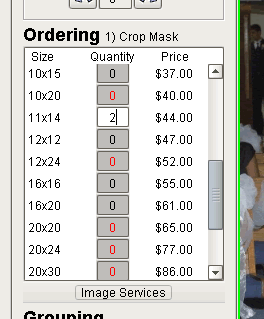
Located on the left side of the Edit/Order screen, you will see a section labelled "Ordering". Here, you may place orders for the currently selected crop mask. The three columns in this section are Size, Quantity, and Price.
The Size column contains all print sizes that are offered by your lab.
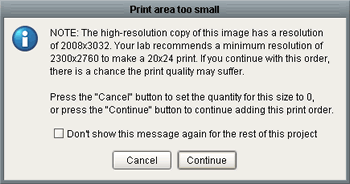
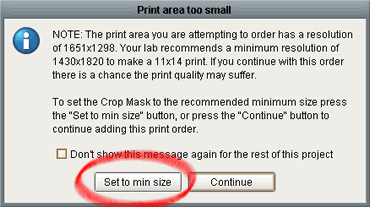
The Quantity column contains text input boxes for each print size, so that you may enter in the number of prints you want for a particular size. If the current size of your crop is too small for a particular print size, then the text in the input box will appear red. This criteria is set by your lab, in which each print size has a minimum recommended resolution. So, if the resolution currently contained within the bounds of your crop mask is less than the minimum recommended resolution, the numbers displayed in the quantity column will be red.
The Price column lists the prices that you have setup under 'Setup -> Pricing' on the main menu (to learn more about setting up your pricing scheme, please read the 'Pricing' tutorial under 'Helpful Tools & Hints').