 |
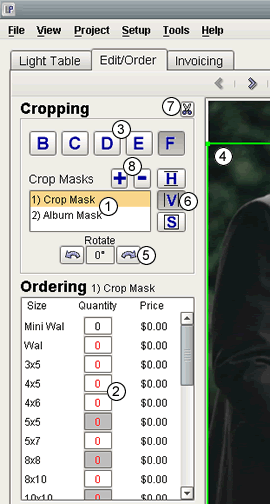
- Types of Crop Masks: You are allowed to associate any amount of crop masks with an image.
They are numbered for your reference, and depending on what the mask is being used for, it will be named accordingly. For
instance, the default mask is simply called a "Crop Mask". However, if the mask is associated with an album,
it will be listed as an "Album Mask". Other types include a "Web Mask" for masks associated with orders from
your online customers, and a "Batch Mask" which is associated with masks created with the Batch Ordering Tool (see
'Helpful Tools & Hints' on the left for more information on batch ordering).
- Print Size Selection / Aspect Ratios: This section of your screen is dedicated to orders
associated with the currently selected crop mask. The print sizes offered by your lab will be listed on the left,
each with a text box to the right that contains order quantities for that size. When you click in a text box for
a specific print size, the green mask on the image will adjust slightly. This is due to the fact that most
print sizes have different aspect ratios. You have the ability to view what the aspect ratio looks like for a specific size, before you change the quantity for the selected print. Note: each crop mask is set to the 8x10 aspect ratio by default.
- Percentage Cropping: The buttons labeled B, C, D, E, and F offer quick and easy percentage
cropping. These letters correlate to masks that are sized to 60%, 70%, 80%, 90%, and 100% of the whole image respectively.
For instance, clicking on "D" will reset the crop mask so that it contains roughly 80% of the image within its bounds.
- Variable Cropping / Positioning: Another way to set the size of your crop masks is through variable
cropping. Variable Cropping allows you to custom set the crop size to whatever size is desired. To utilize this tool,
click and hold your mouse button on any corner of the mask, and drag it to its desired size. You may also move the mask
around the image in a similar manner; the only difference being you must drag and hold your mouse while your
cursor is inside the mask.
- Rotating Crop Masks: Digital Studio LP offers single-degree rotation of crop masks. Please Note:
depending on your lab's capabilities, you will either be able to 1) rotate one or more masks for this image to different
angles, or 2) rotate one or more masks for this image to only the same angle.
- Crop Types: Using the H, V and S buttons, you may set the crop type to horizontal, vertical, or
square, respectively.
- Previewing: Once you have positioned, sized, and/or rotated your mask, you can easily preview your
cropping by clicking the scissors button. This will visually crop out the portion of the image not contained within
the crop mask
- Adding and Removing Crop Masks: Using the '+' and '-' buttons you may add or remove additional
crop masks for additional ordering. Note that you are required to have at least one mask per image.
|