Creating a new project
|
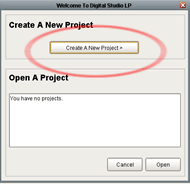
There are two ways to create a new project. The first is to select 'Create A New Project' from the Welcome to Digital Studio LP screen: |
|
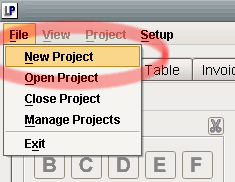
The second way is to select File -> New Project from the main menu: |
|
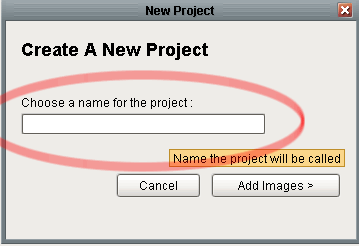
Once selected, a Create A New Project screen will appear. The only information required for creating a new project is a name for the project. The only restriction for naming a project is that it cannot have the same name as an existing project. To create the project enter a name and press the Add Images button: |
New Project FAQ
Q: Is there a limit to how many projects I can create?
A: Not inside the program. The only limitation is the amount of space on your computer's hard drive.
Q: How much space does a project take up?
A: The amount of space that a project takes up depends mainly on the number of images images that were added to the project. To give you an idea of a typical size, a project containing 500 images may take up approximately 100 Megabytes.