Selecting a Mat Layout
The Select Mat window can also be opened by clicking, holding and slightly moving the cursor on an album side and choosing Select Page Layout. These same options can also be used after an image is added to an album page with the exception of double clicking on a page to change the mat, which must be done next to the image on the mat.
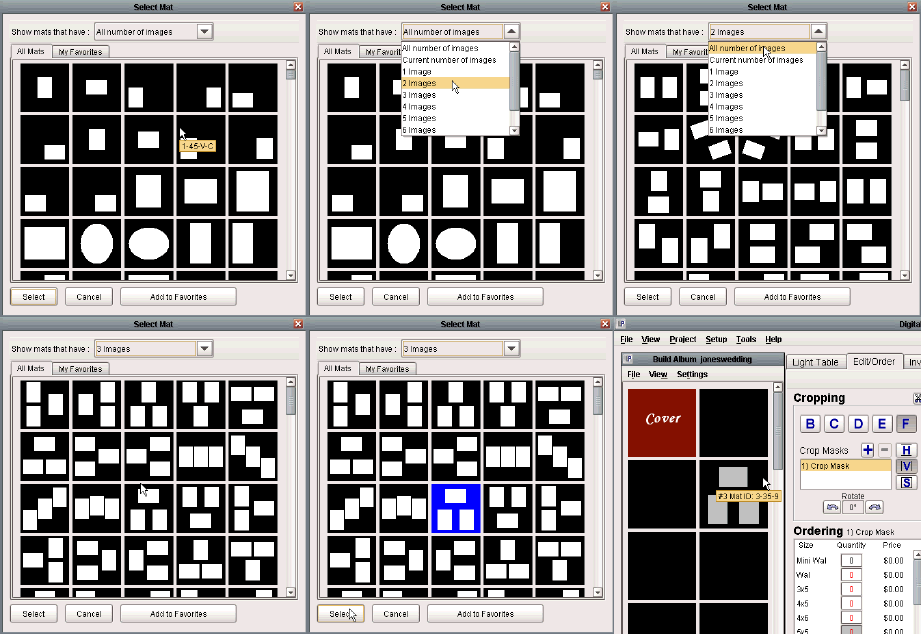
Once the 'Select Mat' screen is opened, you can select a mat by either double-clicking on a mat, or single-clicking on a mat and pressing the 'Select' button.
As you can see to the left, the Number Of Images drop-down menu located at the top of the window provides easier browsing of the available mats. You have the ability to view only the mats that have a specified number of image openings. In the example to the left we decided to view the mats with 3 image openings, then made our mat selection, and pressed the 'Select' button to add the mat to the album.
Double clicking on an image in a mat will open it in the Edit/Order screen. Clicking, holding and slightly moving the cursor on any album page will show a list of options to help build the album.