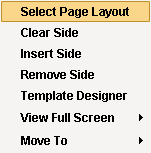
To add an album mat, right click or control click (on Mac) on the mat/album side where you want the new mat inserted. Then select Select Page Layout from the drop down menu and a new mat will be placed on the album side chosen.
Working with Album Mats
Adding, Removing, and Moving Mats
|
To add an album mat, right click or control click (on Mac) on the mat/album side where you want the new mat inserted. Then select Select Page Layout from the drop down menu and a new mat will be placed on the album side chosen. |
|
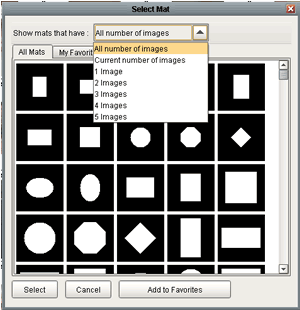
A window will popup with a list of mats available. You can select how many images you want on the page with the drop down that says "show mats that have:". IF you don't have a preference as to how many images you want on the page you can scroll through all the mats and pick one you like. |
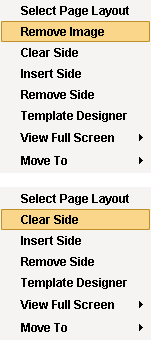 |
Removing an Image and Clearing a Side
|
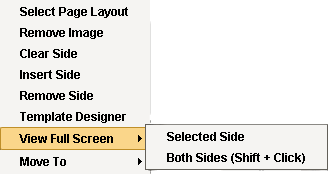 |
Viewing Full Screen At any time in the album building process, an album side can be viewed full screen by right clicking or control clicking (on Mac), and selecting View Full Screen from the drop down. When View Full Screen is highlighted it gives the options of viewing the Selected Side or Both Sides. The view of both album sides can also be selected by shift-clicking either album side. |